

For those times when you have noticed an error such as Dnsprobefinished_nxdomain, or “Error the name server: has reached it limits” for other domain in chrome and even when you load the website, you know it exists, an easy first fix might be trying to clearing chrome dns cache. It is why so many users are looking for the chrome://net-internals/#dns clear host cache command.
Net Internals Google Chrome had Net Internals where you could reset cache of hosts, drain socket pools using one click. Recent Chrome browser has disabled Net Internals and added new Networking tools in the browser. But the intention is still same of resetting obsolete dns records in chrome so that browsers can ask latest information from dns servers.
Inside this guide, you’ll see an explanation of what chrome://net-internals/#dns clear host cache was and why it served a useful purpose, we’ll go through how to clear the DNS cache for differentChrome versions (both old and new) and then we’ll give you some alternative options for fixing browsing problems related to your DNS cache.
Table of Contents
What Is Chrome://Net-Internals/#DNS?
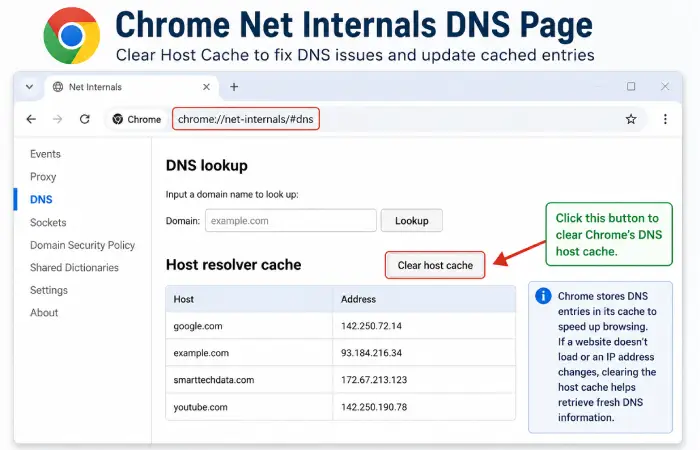
On chrome://net-internals/#dns, Google exposed a built-in Chrome browser feature that showed your computer’s DNS cache. It allowed users to:
- View cached DNS entries
- Clear the browser’s host cache
- Monitor DNS lookups
- Troubleshoot networking problems
- Improve website connectivity after DNS changes
Clear out the browser’s cache Chrome keeps a DNS cache that is internal to the browser. Just like the operating system, the browser will try and use that for DNS resolutions to keep loading time fast and it’s an unfortunate side effect that sometimes-old records get invalidated.
What Does “Clear Host Cache” Mean?
Every time you visit a website, Chrome temporarily stores its IP address in the browser’s DNS cache. This helps reduce lookup time during future visits.
When you click Clear Host Cache, Chrome deletes these stored DNS records. The next time you visit a website, Chrome requests fresh DNS information from the configured DNS server.
This process can help resolve issues caused by:
- Website migrations
- DNS record changes
- Expired IP addresses
- Incorrect cached entries
- Local DNS conflicts
Why Was chrome://net-internals/#dns Removed?
Google gradually removed the Net Internals interface as Chrome evolved. Many of its debugging functions were replaced with newer networking diagnostic pages and developer tools.
As a result:
- The old chrome://net-internals/#dns page no longer works in current Chrome versions.
- Users should use the newer network internals pages or rely on operating system DNS flushing when troubleshooting.
If you are using an older version of Chrome, the page may still be available. For more related articles visit our website
How to Clear Host Cache in Older Chrome Versions
If your Chrome version still supports the legacy page:
Step 1
Open Chrome.
Step 2
Type:
chrome://net-internals/#dns
Step 3
Press Enter.
Step 4
Locate the Clear Host Cache button.
Step 5
Click Clear Host Cache.
Chrome immediately removes all cached DNS entries.
How to Clear DNS Cache in New Chrome Versions
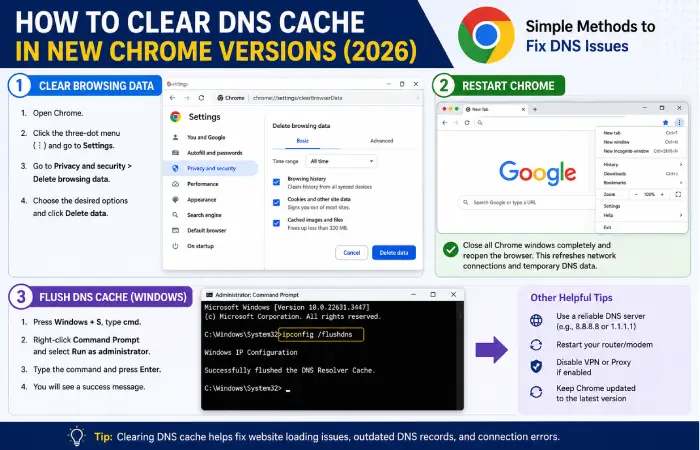
Since the old page has been removed, you can use these alternatives.
Method 1: Clear Browser Data
- Open Chrome.
- Click the three-dot menu.
- Go to Settings.
- Select Privacy and Security.
- Click Delete browsing data.
- Choose the desired options and clear the data.
While this doesn’t directly clear the DNS cache, it helps resolve some website loading issues.
Method 2: Restart Chrome
Closing all Chrome windows and reopening the browser can clear certain temporary network states.
Method 3: Flush the Operating System DNS Cache
On Windows:
- Open Command Prompt as Administrator.
- Type:
ipconfig /flushdns
- Press Enter.
You should see a confirmation message indicating the DNS Resolver Cache has been successfully flushed.
Flush Socket Pools (Legacy Feature)
Older Chrome versions also included Flush Socket Pools under the Net Internals page.
This option reset active network socket connections and was useful when:
- Websites stalled during loading
- HTTPS connections failed
- Proxy settings changed
- Network configurations were updated
Although the interface has changed, restarting Chrome generally refreshes active connections.
Common DNS Errors Fixed by Clearing Host Cache
Clearing the DNS cache may help resolve errors such as:
| Error | Description |
| DNS_PROBE_FINISHED_NXDOMAIN | Domain cannot be found |
| ERR_NAME_NOT_RESOLVED | DNS lookup failed |
| ERR_CONNECTION_TIMED_OUT | Server took too long to respond |
| ERR_CONNECTION_RESET | Connection unexpectedly closed |
| DNS Server Not Responding | DNS server failed to reply |
Benefits of Clearing Chrome DNS Cache
Clearing the browser’s DNS cache offers several advantages:
- Retrieves updated IP addresses
- Fixes website loading problems
- Resolves DNS conflicts
- Helps after website migrations
- Improves browsing reliability
- Removes outdated cached records
Additional Troubleshooting Tips
If clearing the DNS cache doesn’t resolve the issue, try the following:
- Restart your computer.
- Restart your router.
- Switch to a public DNS service (such as Google Public DNS or Cloudflare DNS).
- Disable VPNs or proxy services temporarily.
- Update Google Chrome to the latest version.
- Check your firewall or antivirus settings.
Frequently Asked Questions
What is chrome://net-internals/#dns?
It was a built-in Chrome diagnostics page used to view and clear the browser’s internal DNS cache.
Does chrome://net-internals/#dns still work?
No. The page has been removed from current Chrome releases. Older versions may still support it.
What does Clear Host Cache do?
It removes Chrome’s stored DNS records, forcing the browser to retrieve updated DNS information the next time you visit a website.
Is clearing the DNS cache safe?
Yes. Clearing the DNS cache is safe and does not delete your bookmarks, passwords, or browsing history.
Will clearing the host cache improve browsing speed?
Not necessarily. It primarily resolves DNS-related issues rather than increasing browsing speed.
How often should I clear the DNS cache?
Only when you experience DNS-related problems, website migration issues, or outdated website records.
Does Windows DNS cache differ from Chrome DNS cache?
Yes. Windows maintains a system-wide DNS cache, while Chrome previously maintained its own browser-level DNS cache.
Conclusion
The chrome://net-internals/#dns clear host cache feature was once a valuable tool for troubleshooting DNS issues in Google Chrome. While modern Chrome versions have removed the old Net Internals page, users can still resolve most DNS-related problems by clearing the operating system’s DNS cache, restarting Chrome, and using updated network troubleshooting methods.
If you’re facing website loading errors, outdated DNS records, or connection problems, clearing the DNS cache remains one of the simplest and most effective troubleshooting steps.

